
Online Notepad With Auto-Save: What Gets Saved and Where?
A practical explanation of browser auto-save, local storage, offline access, and the difference between a saved note and a real backup.
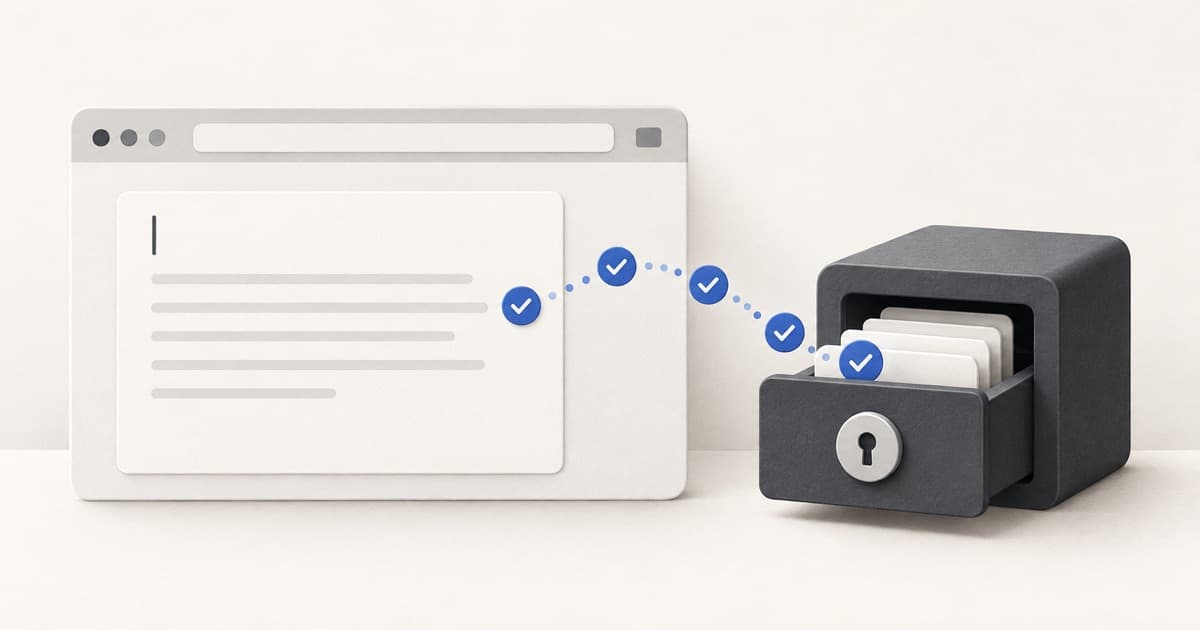
An online notepad with auto-save records changes while you write, so you do not need to press a Save button after every edit. The important detail is the destination: some tools save inside your browser, some upload to a cloud account, and others write to a file you choose. Knowing which model you are using tells you where the note will reappear—and what could make it disappear.
The short answer: auto-save is a behavior, not a location
Auto-save describes when an app records your changes. It does not describe where those changes go. A browser notepad may save locally on the same device, while an account-based notes app may send each update to a remote server. Both can honestly say they auto-save, but their privacy, recovery, and syncing behavior will be different.
Before relying on any writing tool, look for a clear storage label. Useful wording includes “saved in this browser,” “saved to your account,” or “saving to this folder.” If the product never identifies the destination, treat the note as temporary until you export it.
Three common ways an online notepad can save
A tool can combine these models. For example, it can keep the fast working copy in browser storage and let you export important notes as plain-text files. That approach preserves quick access without pretending that browser storage is a complete backup system.
- Browser storage: the note stays in site-specific storage inside the current browser profile. It can survive closing and reopening a normal browser window, but it does not automatically follow you to another browser or device.
- Cloud storage: the note is associated with an account and stored on the provider's systems. This usually enables syncing and recovery, while requiring you to trust the provider's privacy and security practices.
- Local file storage: the app downloads a copy or, with your permission in a supported browser, writes to a folder on your device. The file can then be included in your normal backup system.
How NerdsNote auto-saves your notes
NerdsNote saves ordinary notes to your browser's local storage as you edit. No account is required, and the working note is not uploaded to NerdsNote's server unless you deliberately create a share link. The status line in the editor says “Auto-saved in browser” when that is the active storage mode.
On supported desktop browsers, you can also connect a local folder. NerdsNote then writes notes as text files in that folder. Folder access is optional and permission-based, so the browser may ask you to reconnect after a permission expires.
How to check that auto-save is working
This one-minute test is especially worthwhile before a long writing session. It catches private-browsing mode, disabled storage, expired folder permission, or a different browser profile before you entrust the tool with valuable work.
- 1Create a clearly named test note and type a sentence that you can recognize.
- 2Wait for the editor's saved status instead of closing the tab immediately after the final keystroke.
- 3Reload the page in the same browser profile and confirm that the note returns.
- 4If you connected a folder, open the corresponding text file and verify its latest contents.
- 5Delete the test note only after you understand which copy is the working copy and which is the backup.
Why an auto-saved note is not automatically backed up
Auto-save protects you from forgetting to click Save. A backup protects you when the original storage is removed, damaged, or no longer accessible. If both the live note and its history exist only in one browser profile, they share the same point of failure.
Browser site data can be removed when you clear browsing data, reset a profile, use an automated cleanup tool, or uninstall software. Notes created in a private or incognito session are normally discarded when that private session ends. Device loss and hardware failure are separate risks that auto-save cannot solve.
A safer auto-save workflow for important writing
For quick calculations, disposable snippets, and rough drafts, the browser copy may be enough. For research, client work, study notes, or anything difficult to recreate, keep at least one independent copy outside the browser.
- 1Use browser auto-save for the fast working copy.
- 2Give important notes descriptive titles so exported files are easy to identify.
- 3Export a plain-text copy after a meaningful session or milestone.
- 4Store that file in a backed-up folder or another approved storage location.
- 5Open a recent export occasionally to make sure your backup is readable.
Does browser auto-save work offline and across devices?
A local-first notepad can continue saving while offline once the app itself is available, because writing to browser storage does not require a network request. The note generally remains tied to the same website, browser profile, and device, however. Opening the same site on another computer will not reveal that local copy.
If automatic cross-device access is essential, choose a trustworthy cloud notes service. If privacy and immediate access matter more, use a local-first notepad and move selected files between devices through your own backup or file-sync workflow.